Set up company sign-in
For organization admins. Kaloko works with the sign-in your company already uses: personal sign-in on every plan, an organization-wide second factor from Business, and your identity provider with SCIM on Enterprise.
Sign-in on every plan
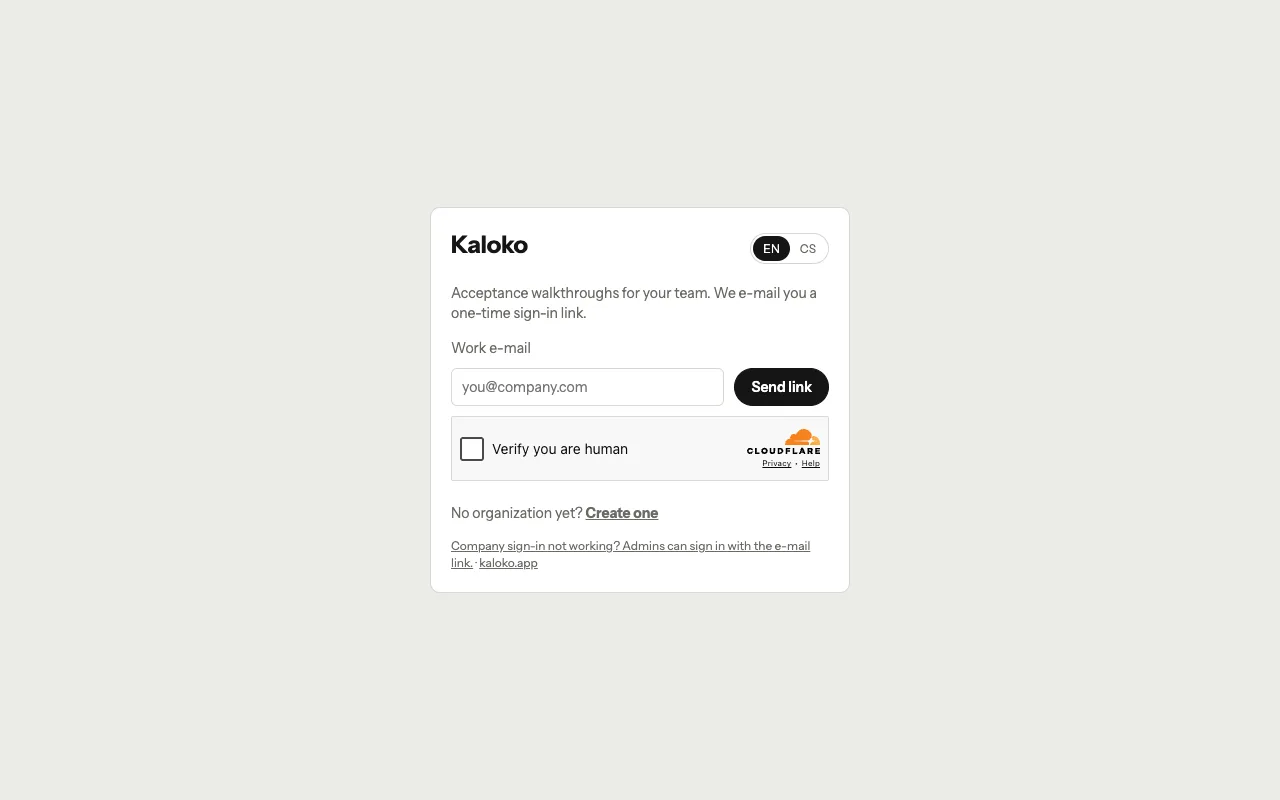
People sign in with a one-time link sent by e-mail, or with Google, Microsoft or GitHub. Each person can add a passkey or an authenticator app as a second step in their account settings.
On Business an admin can require the second step for the whole organization and set limits for sessions, under Settings → Security. People without a second step are asked to add one before they continue.
Verify your domain first
Company sign-in and SCIM act only on addresses from verified domains.
- Open Settings → People and add your domain under Sign-in domains.
- Add the TXT record Kaloko shows to your DNS, or prove the domain by signing in with Google Workspace or Microsoft 365.
- Choose Verify now. Until the domain is verified, nobody joins through it.
Connect your identity provider (Enterprise)
- Open Settings → Security → Company sign-in.
- Choose SAML (Okta, Entra ID, Google Workspace and others) and paste your provider's metadata, or OIDC with the issuer, client ID and secret. Kaloko's SP metadata, with its certificate, is on the same page.
- Choose Test connection. It shows what the provider sent and whether Kaloko would accept it; nobody is signed in by the test.
- Enforce it. People from your verified domains then sign in only through your provider. Admins with a passkey or an authenticator app keep a way in for the day the provider is down.
Optional settings on the same page:
- Encrypted assertions: create the organization's key pair; a new pair keeps the old one working until you remove it.
- Single logout: signing out at the provider signs people out of Kaloko, and the other way round.
- Sign-in from the app tile of your provider, off until you turn it on, with the page people land on.
- Your provider's second step can count as Kaloko's, for sign-ins through your provider.
Guests from other companies keep signing in as before and see only the projects they were invited to.
Provision people with SCIM (Enterprise)
Paste the SCIM base URL and token from Settings into Okta or Entra ID. Assigned people join with their domain's default role, pushed groups map to projects and roles, and removing someone ends their sessions, revokes their tokens and takes them off every project. SCIM never makes anyone an admin.
Limit where people come from (Enterprise)
Under Settings → Security you can allow IP ranges for the app and, separately, for the API, the CLI and MCP. The audit log can be streamed to a signed webhook, Splunk or a Datadog-compatible endpoint.
Where your data lives and who processes it: Security and data.