Invite people and guests
A run is only useful once the people who decide have seen it. Bring colleagues into the organization, invite a client to a single project, or let everyone from your company domain read along. Viewers are free on every plan, so nobody has to ration who may look.
Invite a colleague to the organization
- Open Settings → People and choose Invite to the organization.
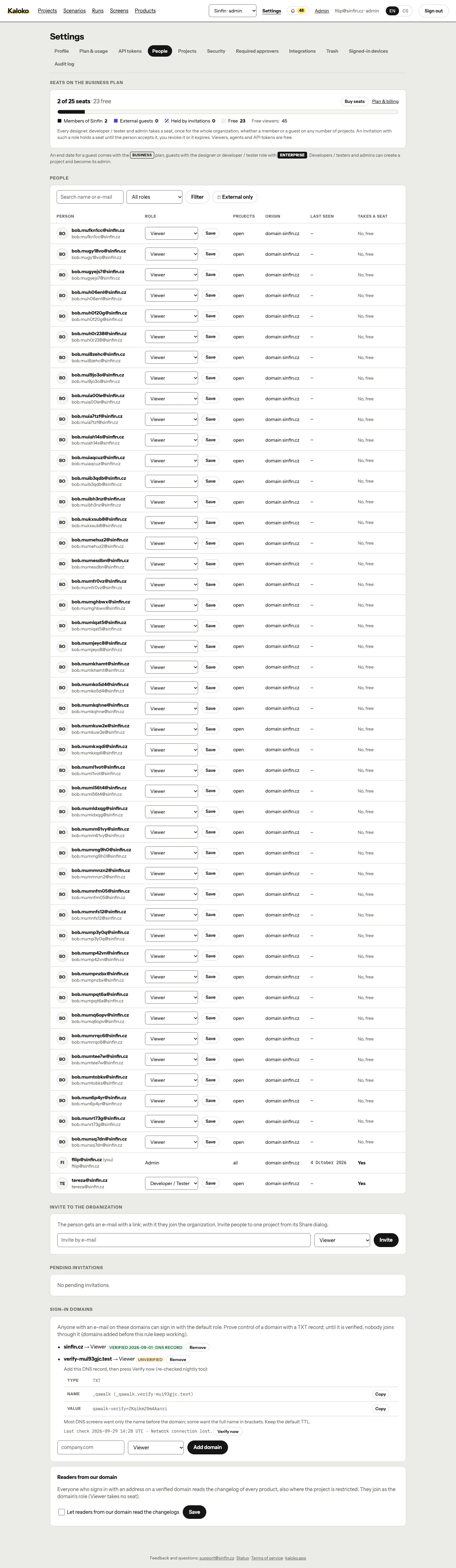
Members in Settings · - Enter the e-mail address and pick a role. A Viewer reads, comments and approves; the other roles are explained in Roles and API tokens.
- The person gets an e-mail with a link and joins the organization with it.
The list in Settings shows every member with their role and when they were last seen, and pending invitations with who sent them and when they expire.
Invite someone to one project
Clients, freelancers and colleagues from other teams often need one project, not the whole organization.
- Open the project and choose Share.
- Type the e-mail address, also one outside your organization, and pick a role.
- Choose Invite. The invitation is valid for 14 days.
An address outside your organization joins as a guest. Guests see only the projects they were invited to: not the other projects, not the people of the organization, not settings or billing. The Share dialog also shows who already has access and whether the project is open to every member or restricted to the people listed.
On Business you can set a date when a guest's access ends; on that day they leave the project and get an e-mail. Guests with the Designer or Developer / Tester role are part of Enterprise; on other plans a guest is a Viewer.
Let your company domain sign in
Instead of inviting colleagues one by one, add your company domain under Settings → People → Sign-in domains. Prove you control it with the TXT record Kaloko shows; until the domain is verified, nobody joins through it. Anyone with an e-mail on a verified domain can then sign in with the domain's default role (Viewer unless you choose another). Public mailbox domains such as gmail.com cannot be claimed.
Readers from your domain
On Business, the Readers from our domain switch in the same place lets everyone who signs in from a verified domain read the changelog and docs of every product, also where the project is restricted. They join as Viewers and take no seat. See Publish a changelog with pictures.
Who takes a seat
Viewers never do. Designers, developers / testers and admins take one seat each, once for the whole organization, members and guests alike. An invitation with such a role holds a seat until it is accepted or revoked.